Introduction
Have you ever had to deal with any of these scenarios?
- Text data from a spreadsheet or database output you need to turn into SQL insert scripts
- A pipe-delimited file where you need to re-order columns
- Creating a new delimited file from another one
If you answered yes to any of these, you've probably wrestled with Excel formulas or custom scripts. With the Multi-Line String Formatter, you can easily manipulate delimited text into any format you want. Here's how…
Basic Usage for String Manipulation
The screen consists of 3 sections: raw text input, format definition, and formatted output.
Top Section: Input Text
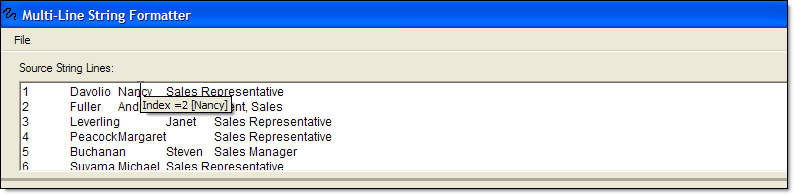
Simply paste in your text — from Excel, a Word table, a CSV, pipe-delimited, etc. The text box accepts any format and preserves all delimiters, including non-printable characters like tabs. Once you define your delimiter, you can click any section of a line to display its index and full value via a tooltip.
Middle Section: Format Definition and Delimiter Setting
This section defines your output formatting. It uses .NET's String.Format syntax under the hood,
so {0} tokens should be familiar. Remember that indexing starts at 0.

You also set the delimiter here using pre-defined options or your own custom delimiter. Right-click in this section to save your format definition for reuse!
Bottom Section: Formatted Text Output
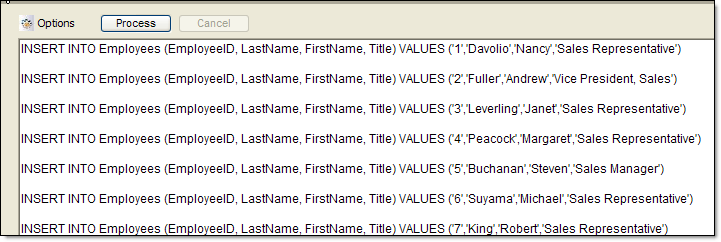
Once you've configured the first two sections, hit Process and the tool will output your newly formatted string. Right-click the output box to copy to clipboard or save to a new file.
Processing Options
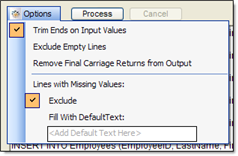
In the options menu, you can control additional output handling. By default, Trim Ends on Input Values and Exclude are checked — trimming extra end-spaces and excluding lines that don't have enough indexes to fulfill the format. You can also exclude completely empty lines, remove carriage returns from output, or fill in missing values with a pre-defined filler text.